The Staff Selection Commission (SSC) has completely modernized its application process. Gone are the days when candidates could upload any old, scanned passport-size photograph from their gallery. To curb impersonation and mismatch errors, the Commission has strictly mandated Real-Time Live Photo Capture for the SSC CGL examination.
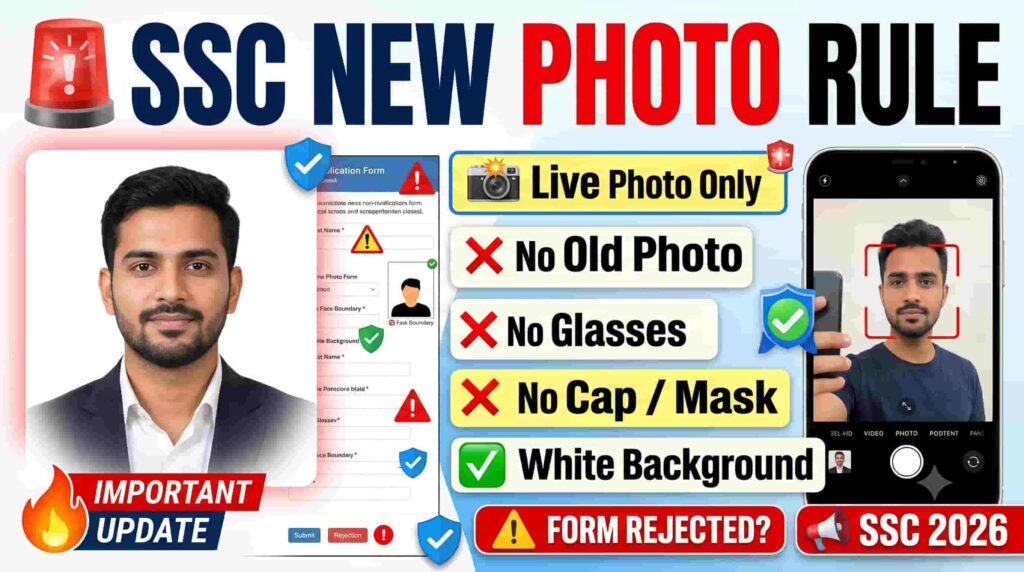
Every year, thousands of applications are rejected automatically because candidates overlook minute photographic instructions. This comprehensive guide breaks down the official SSC CGL live photo upload guidelines, correct alignment, camera configurations, and the step-by-step upload process to ensure your form gets accepted on the very first attempt.
What are the Official SSC CGL Live Photo Upload Guidelines?
According to the official SSC guidelines, candidates must capture a real-time, live photograph against a plain, light-colored background (white or off-white) with a neutral expression. No pre-saved photos, spectacles, sunglasses, caps, or masks are allowed. The face must align perfectly inside the on-screen red boundary box under direct front lighting.
Visit the official website at Staff Selection Commission Official Portal to create your OTR profile or to submit your online application form.
5 Golden Rules of the SSC Live Photo Policy
To prevent immediate automated filtering by the SSC portal, your live photograph must strictly adhere to these five non-negotiable parameters:
- Absolutely No Pre-saved Photos: You cannot browse and upload an existing image from your system. The portal requires a real-time web-capture.
- No Re-photographing Printed Pictures: Pointing your webcam or phone camera at a physical printed photo to capture it is strictly forbidden.
- Solid, Light-Colored Background: Stand or sit against a plain, clutter-free background. Ideal colors are solid white, off-white, or very light gray. Avoid patterns, curtains, brick textures, or busy rooms.
- Zero Accessories Allowed: You must remove caps, hats, masks, mufflers, and all types of spectacles/glasses (including daily prescription glasses). Your eyes must be fully visible.
- Perfect Neutral Expression: Look directly into the camera lens. Do not smile, frown, blink, or tilt your head. Keep your eyes wide open and your mouth completely closed.
You can download and read the 132-page recruitment document directly via the SSC CGL 2026 Official Notification PDF to cross-verify all instructions before the June 22 closing deadline.
Camera Positioning & Setup Environment
Achieving the right framing prevents “low resolution” or “out of frame” errors. Set up your environment using these professional benchmarks:
- Eye-Level Device Alignment: Position your laptop webcam or smartphone camera exactly at your eye level. Tilted angles alter your facial dimensions and trigger manual rejection.
- The Red Boundary Box Rule: When the live capture module opens, a distinct red boundary frame/rectangular box will appear on the screen. Your entire face and the top part of your shoulders must fit comfortably inside this box.
- Maintain Optimal Distance: Sit or stand roughly 2 to 3 feet (24–36 inches) away from the camera lens. Getting too close crops your ears out of the frame, while staying too far reduces facial pixel density.
- Direct Front Lighting: Ensure that the primary light source is placed directly in front of your face. Do not sit with a bright window, lamp, or door behind you (backlighting), as this casts dark shadows across your facial features.
How to Capture Live Photo on SSC Portal (Quick Steps)
The Commission provides two official tech channels to record your live digital photograph:
Method 1: Using a Desktop or Laptop Webcam
- Visit the official website: ssc.gov.in.
- Log in using your One-Time Registration (OTR) credentials and navigate to the active CGL application window.
- Advance to the “Upload Documents” module.
- Click on the button labeled “Capture Live Photo”.
- Your browser will trigger a pop-up asking for camera access. Click “Allow”.
- Center your face within the frame, remain perfectly stationary, and click “Capture”.
- Review the thumbnail preview. If it looks sharp and unblurred, click “Save and Proceed”.
Method 2: Via the Official “My SSC” Mobile Application
If your computer lacks a clear high-definition webcam, utilizing your smartphone’s front camera is the safest alternative:
- On the desktop application upload screen, look for the official QR Code.
- Scan this code with your smartphone to download the authorized “My SSC” App directly from the Google Play Store.
- Open the app and log in with your standard OTR registration number and password.
- Locate your running CGL form and tap the live photo option.
- Use your phone’s front camera in a brightly lit room to seamlessly capture and submit your photo.
If you are using your mobile camera for a clearer shot, download the verified mySSC App on Google Play Store to scan the portal QR code and upload your picture directly.
Don’t Forget: Scanned Signature Specifications
While your photo is captured live, your signature must still be uploaded as a traditional scanned file. A minor mistake here can void your successful photo upload:
| Parameter | Official Specification Requirements |
| Ink & Paper Type | Must be signed on a clean, blank white sheet using a Blue or Black ink pen. |
| Writing Style | Sign naturally. Do not sign your full name in block/capital letters. |
| Allowed File Size | Strictly between 10 KB and 20 KB. |
| Acceptable Formats | Only JPG or JPEG extensions. |
| Exact Dimensions | Approximately 6.0 cm (Width) x 2.0 cm (Height). |
Frequently Asked Questions (FAQs)
Q1. Can I wear my regular prescription reading glasses for the live photo?
No. Under the updated SSC guidelines, all forms of spectacles, sunglasses, and anti-glare glasses must be removed before capturing the live photograph, regardless of whether they are medical prescriptions.
Q2. The “My SSC” mobile app camera displays a black screen. How do I fix it?
This occurs when app permissions are blocked. Go to your phone’s Settings > Apps > My SSC > Permissions, and ensure that Camera and Storage access are toggled to “Allowed”.
Q3. Will my application get rejected if a small piece of furniture is visible in the background?
Yes. The background tracking software looks for uniformity. To be safe, sit directly in front of a plain, solid wall or tape a large sheet of plain white chart paper behind your seat.
Other Post:
UPSC CSE Prelims Result 2026 Name List (Released): Download Official PDF Here